
Waves and audits
Shopper-X is mystery shopping scheduling software built around two objects. A wave is a campaign with a start and an end date. It bundles the questionnaires that run in that period for one client. An audit is one visit: one shopper, one location, one questionnaire, inside a wave. Each audit carries a shopper, a visit date and a status.
The administrator at the agency owns the schedule. Shoppers see their own audits in an inbox on the web and in the mobile app. Validators see the reports that come back. Clients do not see the schedule at all; they see validated reports and statistics.
The schedule dashboard
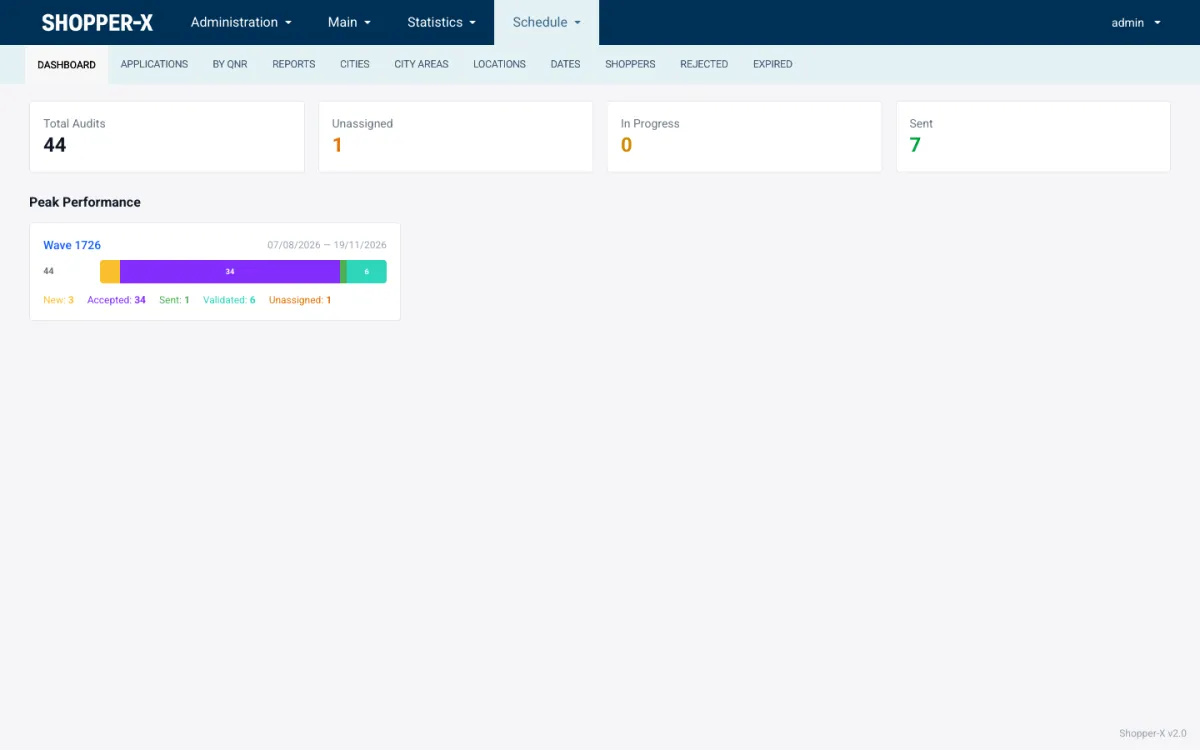
Four counters at the top show total audits, unassigned, in progress and sent. Below them, each client has a status bar per wave: new, accepted, sent, validated and unassigned, with the count for each. A wave with a large unassigned share a week before the start is the one to work on first.
Building the schedule
Add empty audits, import from XLSX, or clone the last wave
Add empty audits creates rows that you fill with a location and a questionnaire. Import an XLSX file when the client sends the location list as a spreadsheet. Or clone a previous wave into the current one: locations, audits, custom fields, wave settings and shopper settings come across, and only the dates and the shoppers need attention.
Custom fields per audit
Administrators define extra fields on the audit, for example the product to ask for or a till number. The values appear in the shopper's inbox next to the audit. On the audit list the filter panel can filter by them, and the export adds them as columns.
Eligibility rules
Shopper settings, per wave or per questionnaire, decide who may take an audit: age, city, whether a car is needed, whether a driving license is required. The server checks these rules when a shopper applies for an audit, so a scenario that needs a license does not collect applications from shoppers without one.
Per-wave settings
Each wave sets its own reaction time (how long a shopper has to accept or reject), fill-in time (how long after the visit the report is due), excluded dates on which no visit may take place, warnings, the administrators responsible for the wave, and the ad settings for publishing its audits to shoppers. The settings travel with the wave when it is cloned.
Assigning shoppers
Suggest a shopper
For a single audit, Suggest shopper builds a shortlist for that audit. Rating tier sets the order: Gold shoppers are offered work first, then Silver, then Bronze. The tiers come from the scores validators give on earlier reports, so the shortlist favors shoppers with a track record.
Ads, applications, bulk assign
For a large wave, publish the audits as ads. Shoppers browse ads by city or questionnaire on the web or in the app and apply with a proposed visit date and a comment. The server checks the shopper's coverage area, the client's restricted-shoppers list and the questionnaire's gates before an application is accepted. The administrator then opens the Applications view and assigns in bulk.
Assignment and change emails
Select the assigned audits and click Send to email the shoppers their assignments. Shoppers also get an email when the status or the visit date of an audit changes. Every email text is a translation string the agency can reword in the admin.
Deadlines and status
Reaction and fill-in deadlines
Every audit carries two deadlines. The reaction deadline follows from the assignment date and the wave's reaction time; the shopper has to accept with a visit date, or reject with a reason, before it. The report deadline follows from the visit date and the fill-in time. A scheduled job tracks the reaction state separately from the audit status, so each row shows waiting, overdue or reacted.
Eleven audit states
An audit is always in exactly one of eleven states: new, assigned, accepted, rejected, in progress, returned, completed, validated, dropped, replaced and unacceptable. The server enforces which transitions are allowed, so a row cannot jump to a state the workflow does not permit.
The 2-day rule
A shopper may reject an accepted audit or change its date, on the web and in the app, but not when the visit is less than two days away. After that point only the administrator can move it. The rule protects the client's visit window.
Changing a live schedule
Bulk edit
Select rows and change the status, shopper, fee, visit dates or custom-field values on all of them at once. Edit all applies the same change to the whole list.
Clone, replace, drop
Clone an audit when the client adds a second visit to the same location. Replace an audit when the shopper cannot do it: the old audit moves to the replaced state and a new one is created for another shopper. Drop an audit when a location closes; it stays in the list as dropped.
Editing lock per client and wave
When one administrator filters the list down to a single client and wave, anyone else who opens that wave sees "Locked by" with the name until the first person leaves. Users with a higher rank can override the lock.
Full revision history
Every change to an audit is recorded with who made it and when. The history page answers "who moved this visit to Friday" without a meeting.
Views, filters and export
The audit list has a tab per view: by audits, by questionnaire, by cities, by city areas, by locations, by dates, by shoppers, rejected, applications and expired. The filter panel covers client, waves, report status, reaction status, test status, city, city area, scenario, shopper, date range, object IDs and audit IDs, plus the custom fields. Each row shows the location, scenario, both deadlines, visit date, report status, score, the shopper with their number of checks, and a business-trip flag.
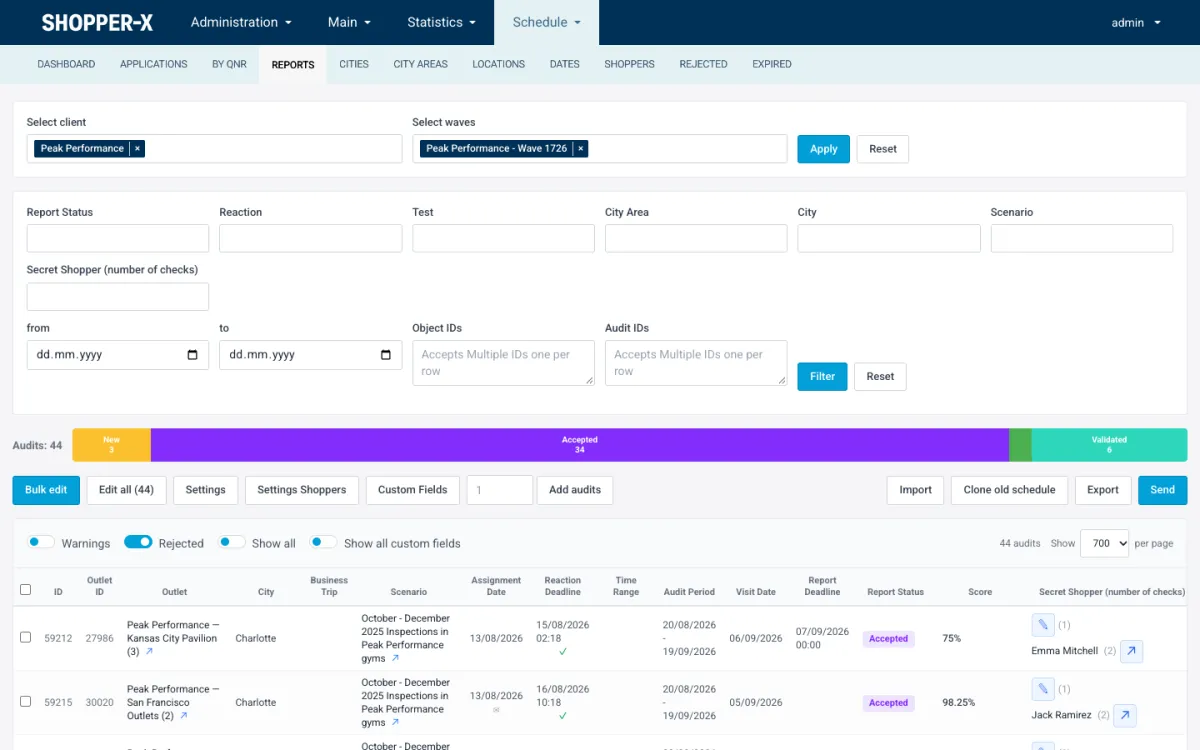
Export writes an XLSX file with two sheets, schedule and rejected, with the custom-field columns appended.
Managers on a wave
A manager is internal staff attached to a wave. The role sees the schedule, media and statistics screens filtered to its own waves and nothing else. When a manager is attached, the administrator chooses which attachments go with the manager's notification emails: none, Excel, PDF or both.
Related features
- Mystery shopping software for agencies and brands: the whole platform, the user roles and how one wave runs from schedule to client report.
- Questionnaire builder: the scenarios the schedule assigns, with sections, weights, required photos and eligibility gates.
- Shopper management: registration, training levels and the Bronze, Silver and Gold tiers that drive assignment priority.
FAQ
Can I import an existing schedule?
Yes. Prepare the audits as an XLSX file and use Import on the wave. Locations are imported separately from CSV or XLSX, so bring them in first.
Can I copy last quarter's wave?
Yes. Cloning a previous wave copies its locations, audits, custom fields, wave settings and shopper settings into the current one. Then set the new dates and assign shoppers, or publish the audits as ads.
What happens when a shopper rejects an audit?
The audit moves to the rejected state with the shopper's reason and shows up in the Rejected view and on the rejected sheet of the export. The administrator assigns another shopper, replaces the audit, or publishes it as an ad. A shopper cannot reject or reschedule less than two days before the visit.
Can two administrators edit the same wave?
Not at the same time. When one administrator filters to a client and wave, the others see a "Locked by" notice until that person leaves the list. A user with a higher rank can take the lock over.
Want to see the schedule module with your own wave and location list? Request a demo and we will walk through it with you.